NetVendor Bidding
NetVendor Bidding runs structured, compliant bids from a pre-vetted vendor pool — from project setup through bid award. Property managers can create projects and invite vendors to bid on those projects — all within the app. Our new AI-powered search mode enables property managers to access NetVendor’s 275K+ vendor network to discover and source new vendors. Every vendor invited is already credentialed before the bid opens. Find answers to common questions below for both vendors and property managers.

Frequently Asked Questions
NetVendor Bidding is a tool that connects you with property management companies looking for your services. When a property manager creates a new project, you’re invited to bid, message the project lead, share files, and submit your bid all in one place.
NetVendor Bidding puts your company in front of property managers who are actively searching for compliant vendors for upcoming projects. Your compliance status, service categories, and service area are visible across NetVendor’s network, so your credentials do the selling. Every bid you submit is an opportunity to win new business, build a relationship with different property managers, and gain hands-on experience at individual properties.
To maximize your visibility and ensure bid invitations and notifications reach the right person, complete these three steps:
1. Update Search Categories: Go to Edit your profile> Category tab and select every service you provide. AI matching uses this data to match you for relevant projects. (Multiple can be selected by holding down the control key.)
2. Add Bidding Users: Navigate to the Users tab on the left and click Create Users with Bidding Manager or Bidding User roles so the right people receive notifications.
3. Confirm Account Settings: Verify your name, email and mobile phone number are current. (Can opt in to receive SMS notifications.)
Yes. Both Advanced Search and AI Search mode surfaces vendors based on credentials and profile completeness. An incomplete profile or expired credentials reduces your visibility to property managers. Maintaining your compliance status and your service categories accurate is the most direct way to increase bid opportunities.
If your company is invited to bid on a project, you will receive an email (or an SMS if opted in) with details about the project and a link to the Bidding feature within your NetVendor profile. These emails will come from [email protected] and the subject line will be “Invitation to bid” followed by the project name and ID.
There is no limit to the number of projects you can submit a bid for.
NetVendor’s AI automatically surfaces vendors for property managers based on service category, service area, and compliance status. A complete, active profile means more bid invitations. Property Managers can also use Advanced Search to find vendors in the Public List (NetVendor’s 275K+ network) using their own specific criteria and filtering.
Not at this time. You must wait to be invited to bid on a project.
Yes. NetVendor Bidding includes secure document storage so all project-related files including bid submissions, scope documents, disclosures, and compliance records are stored in one place. Documents are accessible throughout the project lifecycle and tied to the audit trail for each bid.
Yes. There is no penalty for not submitting a bid on a project.
There is no set number, but property managers often require a minimum of 3-5 bids per project.
Yes. There is an "Edit Bid" button on the Bid Details page. Note: Bids can only be edited until a winning bid is chosen.
No. Other vendors cannot see who is bidding on a project. Only property managers can see the vendors bidding on a project.
No. You can decline to bid on any project for which you do not wish to submit a bid.
Yes. Your track record in the NetVendor network including bid responsiveness, award history, and compliance standing builds over time and is visible to property managers evaluating vendors. Vendors who consistently submit bids and maintain active credentials gain a competitive advantage in the network.
Some projects include a processing fee, which only applies if your bid is awarded. Not every project has one. When a fee does apply, you'll see the amount upfront on the bid form before you submit, so there are no surprises after the fact. The fee amount is based on the size of your bid. This helps us keep the bidding process running smoothly for everyone.
As a Vendor, you may receive the following notifications via email:
- Invitation to Bid: When a Project Manager invites you to bid on a project.
- Bid Reminder & Deadline Approaching Reminder: Reminders for projects you haven’t bid on yet.
- Bid Deadline Changed: When a project’s bid deadline is updated.
- Unread Message Notification: When a Project Manager sends you a message.
- Bid Accepted/Bid Declined: Updates on whether your bid was successful or not.
- Project Closed: Notification if a project is canceled or closed by the Project Manager.

NetVendor Bidding gives you a structured, auditable way to source and award bids. Create a project, use our AI-powered search to find and invite pre-credentialed vendors from your approved list or NetVendor’s 275K+ vendor network, collect bids in a consistent format, and award with a full audit trail from project setup to final award. No spreadsheets. Stop chasing bids. Start controlling them.
You can access NetVendor bidding by logging in to NetVendor and clicking on “Projects” in your Left Menu.
From the NetVendor Bidding screen click on the “Create New Project” button to get started.
No. You can create and save a project to your list and invite vendors when you are ready.
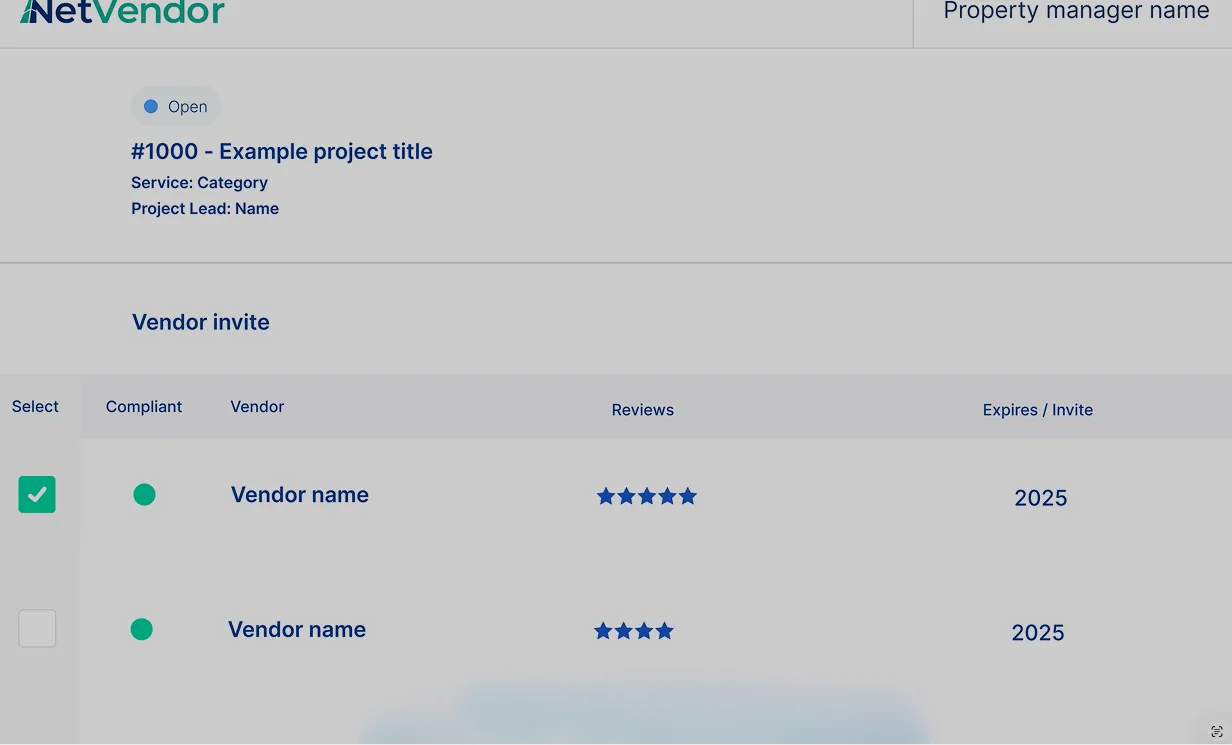
You can use our AI-powered search mode to expand beyond your approved vendor list and into NetVendor’s network of 275K+ vendors. Or find more vendors by simply searching through NetVendor’s “Public List” versus your preferred or approved vendors. Every vendor surfaced will be marked as either compliant or non-compliant. You can also increase your search radius from the default 25-mile range or search by the nearest metro zip code to find additional vendors who service your area.
NetVendor's AI-powered search automatically surfaces and ranks the best-fit credentialed vendors for your project from our 275K+ vendor network. Results appear in two tabs. Best Matches ranks vendors by service category, location, and compliance. Related Services displays vendors offering complementary services that you may not have considered yet. Review vendors before sending an invitation. AI expands your reach so you’re never limited to only the names you know.
Vendors are notified via email and SMS if they've opted in. They can access the bid request and submit their bid.
No. Property managers can invite both compliant and non-compliant vendors to bid; however, a bid cannot be awarded to a non-compliant vendor.
No. A budget is optional by default. Your company can configure it as a required field if consistent budget documentation is important for your procurement or audit process.
Yes. You can edit a project using the “Edit Project” button in actions menu. Note: The Edit Project feature is only available prior to inviting vendors to bid on the project.
Yes. You can send files to a specific vendor using the “Send Message” using the messaging feature next to the vendor’s name on the “Invited Vendors” tab.
Yes. You can edit the bid deadline by clicking in the bid deadline field in the upper right of project screen.
Yes. NetVendor Bidding collects submissions in a standardized format so every bid is comparable by default. The comparison view shows pricing, scope, timeline, and vendor compliance status together in one view. No toggling, no reformatting, and no spreadsheet exports are needed.
Yes. NetVendor Bidding supports tier-based approval workflows so you can route bids automatically through your own built-in and configurable process. Approve, reject, or delegate all in the platform with a full audit trail.
Yes. Both the winning and all non-winning vendors will be notified via email and in NetVendor Bidding.
Yes. Every step from project creation through vendor invite, bid submission, comparison, and final award is documented in NetVendor Bidding. The full record is exportable for ownership review, internal audit, or insurance purposes.
Yes. NetVendor Bidding is built for portfolio scale. Bid history, vendor performance, and award data are centralized across all properties in your portfolio, so managers and teams have consistent visibility without logging into separate accounts or reconciling separate records.